User manual & documentation
Everything you need to set up, run and get the most out of Work360: monitoring, productivity, performance, wellbeing, integrations and more, for admins, managers and employees.
Overview
Work360 is a multi-tenant workforce-intelligence platform. A lightweight agent (Windows, with macOS/Linux support) runs on each employee's computer and streams activity, screenshots, screen recordings, app/website usage, location and data-loss events to a secure, real-time web dashboard.
It goes well beyond monitoring: Work360 turns that activity into fair performance conversations (KPIs, reviews, 1:1s), a healthier team (pulse surveys, workload signals), airtight compliance, and connects to the tools your team already uses (calendars, GitHub/GitLab/Jira, Teams). It also enforces policy: blocking websites, denying USB storage, stopping printing and closing risky apps: via a layered Organization → Team → User policy engine.
Getting started
- 1Create your workspace at /signup (14-day free trial, no credit card), or sign in if your admin already invited you.
- 2As an admin, invite your team from Employees → Invite employee, create Departments and assign each department a manager.
- 3Install the agent on each computer (see The monitoring agent), then map any unmapped agents to the right person.
- 4Watch data appear in real time on the Dashboard, and configure policies (DLP, screenshots, recording), integrations and the org timezone under Settings and Data Loss Prevention.
User roles
Each tenant has three roles with a clear hierarchy:
- Admin: full access to the whole organization: all employees, teams, monitoring data, billing, integrations and configuration (DLP policy, alert rules, API keys).
- Manager: sees and manages only their own team members (timesheets, monitoring data, approvals, engineering output). Managers never see an admin's data and can't change org-wide configuration or billing.
- Employee. A self-service portal showing only their own overview, timesheet, requests, goals and profile.
The navigation itself adapts to your role. You only see the pages you can use.
How mapping works: assign an employee to a Department, and give that Department a Manager. The employee's manager is their department's manager.
The monitoring agent
The agent is a visible system-tray application (never hidden). It installs with admin rights, auto-starts at every login and resists tampering. Sleep/suspend time is correctly recorded as non-working, so idle numbers stay accurate.
Install & enroll
- 1As a tenant admin, open Settings → Install monitoring agent; copy the Tenant Key and download Work360Setup.exe (or use the MSI / PowerShell one-liner).
- 2Run the installer on the employee's PC (it self-elevates via a UAC prompt).
- 3Enter the Server URL and Tenant Key, accept the monitoring (and optional location) consent, and install.
- 4The device enrolls within a minute, and if it matches an employee, it starts streaming immediately.
C:\ProgramData\Work360Agent\config.json (older installs: %LOCALAPPDATA%\Work360Agent\config.json) and re-run the installer. It will ask for a fresh Server URL + Tenant Key.Mapping agents to people
When an agent enrolls, it links to a matching employee automatically. If it can't find a match, it becomes an unmapped agent instead of silently creating a placeholder user.
- Unmapped agents appear in an "Unmapped agents" panel on the Employees page and a banner on the admin dashboard.
- Pick the employee and click Map. That machine's activity flows to them from then on.
- Until mapped, an agent records nothing. Employees without an agent still work normally (they just have no agent data).
Agent troubleshooting
Most install problems are environmental: antivirus, group policy, or network. The installer already checks for the common ones up front and prints a pass/fail list, auto-adds the Windows Defender exclusions, and refuses to report success on a broken install. This section is what to check when a machine still won't install or isn't sending data.
1. Know where things live (and what "working" looks like)
- Program files:
C:\ProgramData\Work360Agent: containsewatch-agent.ps1andconfig.json. (Current agents install machine-wide here: not%LOCALAPPDATA%, which older versions used.) - Proof it's actually running:
%LOCALAPPDATA%\Work360Agent\agent.logis created and keeps growing only while the agent runs. If this file is missing, the agent isn't executing (usually antivirus or policy), even if the program files exist. - Install log:
C:\ProgramData\Work360Agent\install.logrecords exactly what each install did and what was blocked. Read this first when setup fails. - Scheduled tasks:
Work360 Monitoring AgentandWork360 Guardianshould both exist and be Running. - Dashboard: the device shows online (and appears under Employees → Unmapped agents if it isn't mapped to a person yet).
2. Common blockers & how to fix them
- Not run as administrator. The installer self-elevates via a UAC prompt: don't cancel it. A fully silent, non-elevated run can't create the tasks or antivirus exclusions.
- Antivirus quarantining the agent (most common). The installer now auto-adds Windows Defender exclusions for both folders. For third-party antivirus, add the same two folder exclusions manually, then reinstall. Also check Windows Security → Virus & threat protection → Protection history and Restore / Allow any quarantined Work360 or PowerShell item.
- Attack Surface Reduction (ASR) rules pushed by Intune/GPO (e.g. "Block process creations from PSExec/WMI", "Block potentially obfuscated scripts") block PowerShell regardless of folder exclusions. Add the agent to ASR exclusions, or set those rules to Audit for these machines.
- Constrained Language Mode (WDAC / AppLocker). The agent needs PowerShell FullLanguage. Add an allow-rule for
C:\ProgramData\Work360Agent\*.ps1(andpowershell.exe), or deploy the MSI/service package. The installer's pre-flight flags this as "language mode". - Execution policy AllSigned / Restricted. The agent's tasks launch with
-ExecutionPolicy Bypass, so this is usually fine. If the machine policy is AllSigned, either run a signed build (see below) or relax the policy. A browser-downloaded installer that says "cannot be loaded because running scripts is disabled" just needsUnblock-File .\install.ps1orpowershell -ExecutionPolicy Bypass -File .\install.ps1. - Network / proxy / TLS. The machine must reach your Server URL (e.g.
https://api.work360.cloud) over HTTPS: allow it through the firewall and web proxy. For a corporate proxy pass-ProxyUrl http://proxy:8080. TLS-inspection proxies must present a trusted certificate chain. If the device is temporarily offline the agent queues data and sends it when back online. - Wrong system clock. A clock that's far off breaks TLS and token validation: enable automatic time sync.
- Wrong Server URL or expired Tenant Key. Re-copy both from Settings → Install monitoring agent.
- "Already installed but not working." A partial install leaves the Add/Remove entry, scheduled tasks and
config.jsonbehind, so Windows thinks it's present. Clean-uninstall, then reinstall (below). - Installed but no data. The device is unmapped: assign it under Employees → Unmapped agents. Until mapped, nothing is recorded.
3. Diagnose a machine, step by step
- 1Open
C:\ProgramData\Work360Agent\install.log. It names what was blocked. - 2In an elevated PowerShell, confirm the tasks:
Get-ScheduledTask | ? TaskName -like 'Work360*' | Get-ScheduledTaskInfo - 3Check the runtime log is growing:
Get-Content "$env:LOCALAPPDATA\Work360Agent\agent.log" -Tail 20 -Wait - 4Check Windows Security → Protection history for quarantined items and restore/allow them.
- 5Run the agent by hand to surface any antivirus/policy error immediately:
powershell -ExecutionPolicy Bypass -File "C:\ProgramData\Work360Agent\ewatch-agent.ps1" - 6Confirm the machine reaches the server: open your Server URL in a browser on that PC.
- 7If it's still wrong, do a clean reinstall (below).
# 1) remove the broken install
powershell -NoProfile -ExecutionPolicy Bypass -File "C:\ProgramData\Work360Agent\uninstall.ps1"

# 2) confirm it's gone (all should be empty / False)
Get-ScheduledTask | ? TaskName -like 'Work360*'
Test-Path "C:\ProgramData\Work360Agent"

# 3) (third-party AV only) add exclusions Defender gets automatically
Add-MpPreference -ExclusionPath "C:\ProgramData\Work360Agent"
Add-MpPreference -ExclusionPath "C:\Users\*\AppData\Local\Work360Agent"

# 4) reinstall as administrator, then verify agent.log appears within ~1 min
-RequireSigned with signer pinning) so antivirus and SmartScreen trust it fleet-wide. On centrally-managed antivirus you can pass -SkipDefenderExclusion to let your policy own the exclusions.Dashboard & analytics
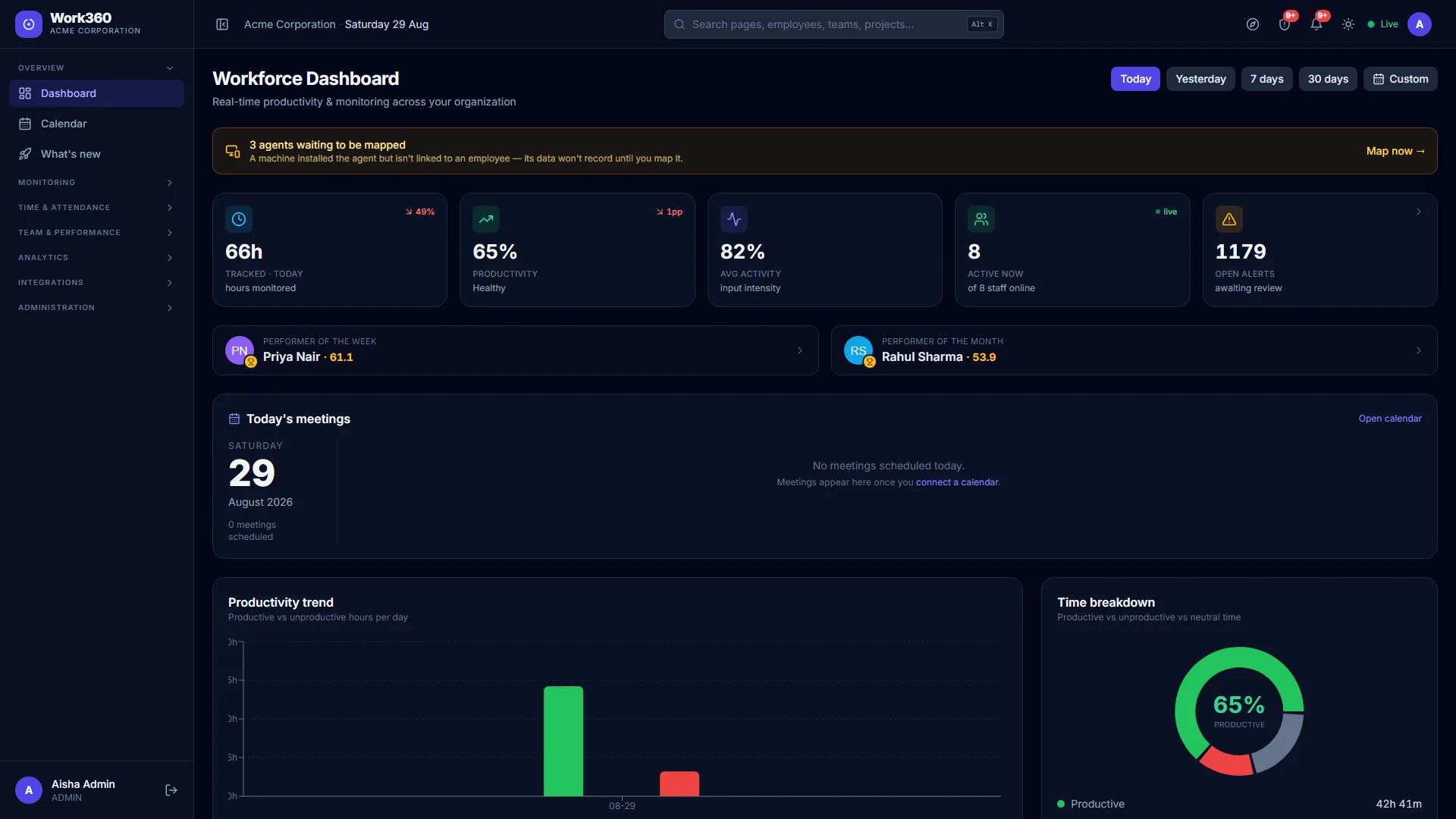
The dashboard shows real-time KPIs: tracked hours, productivity %, active-now count, open alerts. Below that, a productivity trend, a team leaderboard, a live activity feed and a Today's meetings agenda.
Activity % is how much genuine keyboard/mouse input occurred in a sampling window (100% = continuously active, 0% = idle). Productivity % is separate: it reflects whether the app/website used is classified productive, neutral or unproductive. All times follow your organization's timezone (set it in Settings).
Screenshots & screen recording
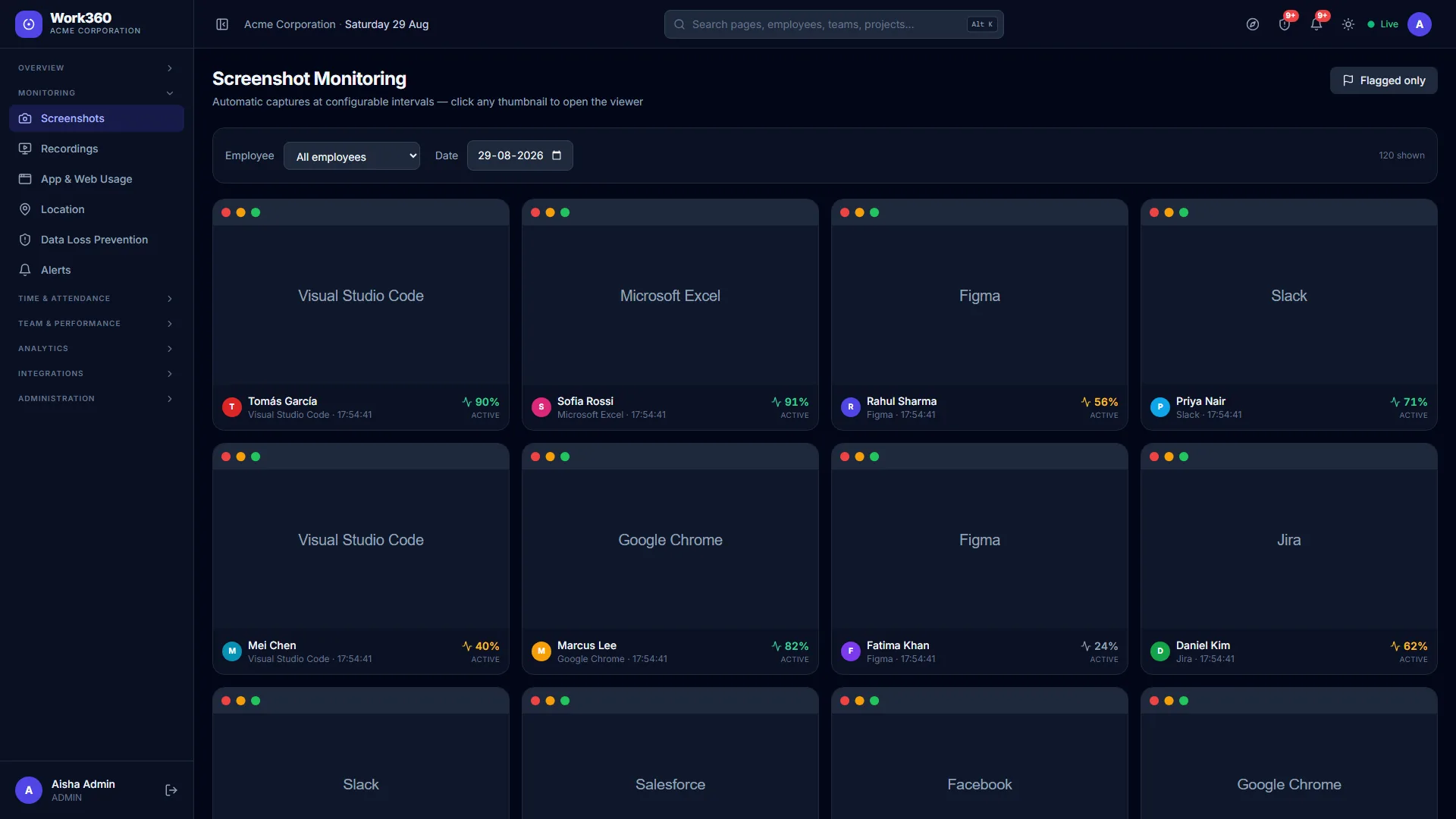
Screenshots are captured automatically on a configurable interval, with a viewer, flagging, privacy blur and date/user filters. Each screenshot shows the activity % at capture time.
Screen recording is a continuous low-fps timelapse, enabled per employee by an admin (plan-gated). It's compressed to stay light on CPU and disk, and plays back in the browser under the employee's Recording tab.
App & web usage
Every application and website used is tracked with duration and classified as productive / neutral / unproductive. Admins classify apps once (App & Web Usage → classify) and the change is backfilled across history. Filter by employee and date.
Timesheets & attendance
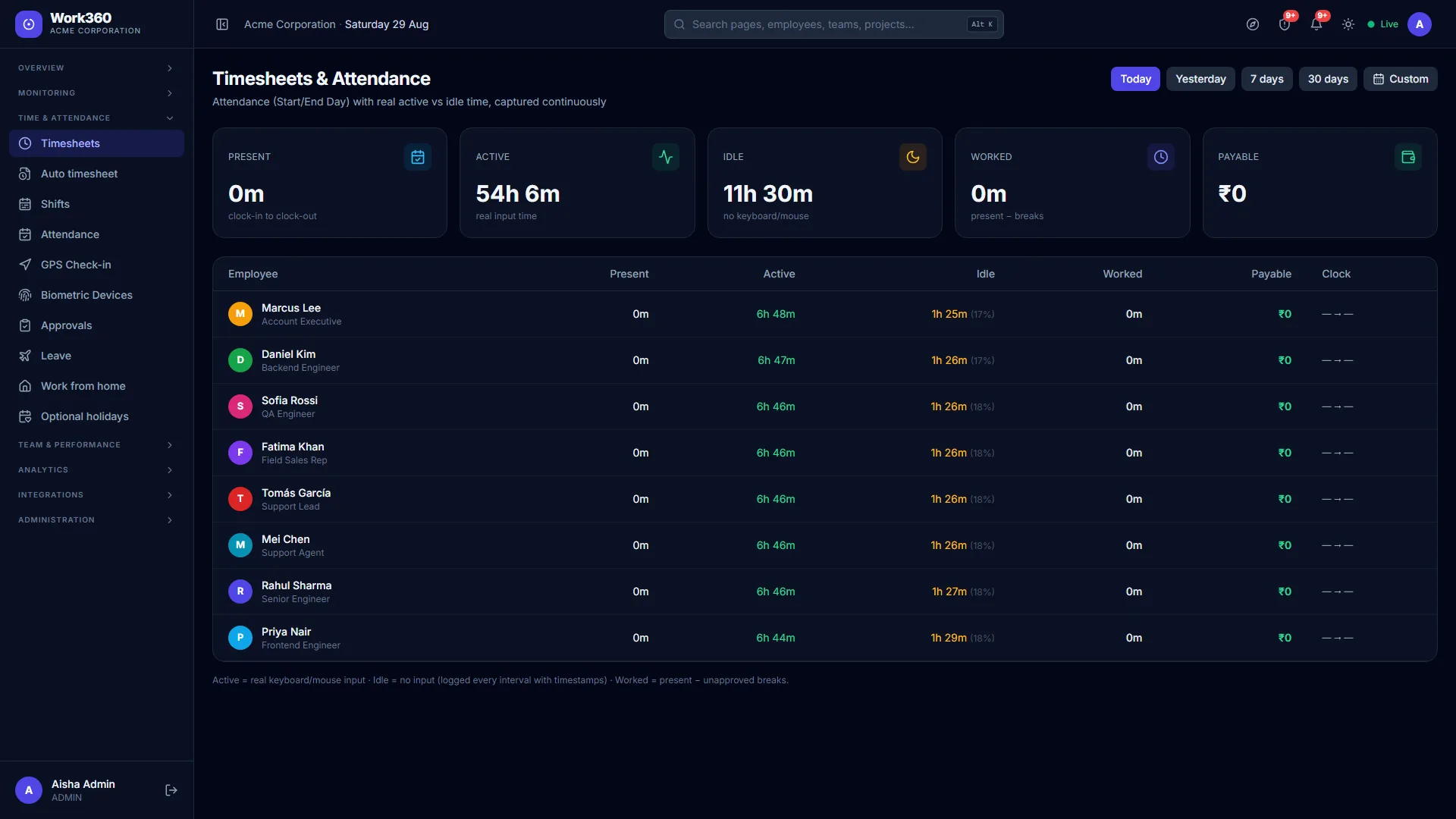
Attendance is built from the agent's Start day / End day plus breaks. Work360 computes net worked hours (present − breaks, counting only inactivity that overlaps a work session) and a payable amount (set an hourly rate per employee), shown on a calendar with per-day detail.
Idle-time approvals
When an employee is idle, they can submit a reason for the idle period. It goes to their manager (and admins) as a request.
- Employee → opens My Timesheet, picks a day, chooses Request approval on an idle period.
- Manager / Admin → the Approvals inbox lists pending requests; approve or reject with a note. Approved idle time is excluded from break deductions.
- Both sides get real-time notifications on submit and decision.
Shift scheduling & rostering
Plan who works when. Create shifts and assign them to people, then compare planned shifts against actual attendance to see adherence: early, late and missed. Employees see My Shifts in their portal.
Data Loss Prevention (DLP)
DLP goes beyond logging. It enforces. A layered Organization → Team → User policy controls:
- Website blocking: matched sites redirect to a branded block page (works over HTTPS). Employees can request access from that page.
- USB / removable storage: deny access.
- Printing: monitor or block.
- Blocked apps: automatically closed.
facebook.com) and enable Detect blocked sites + Enforce blocking. Agents pick up policy within ~2 minutes. DLP configuration is admin-only.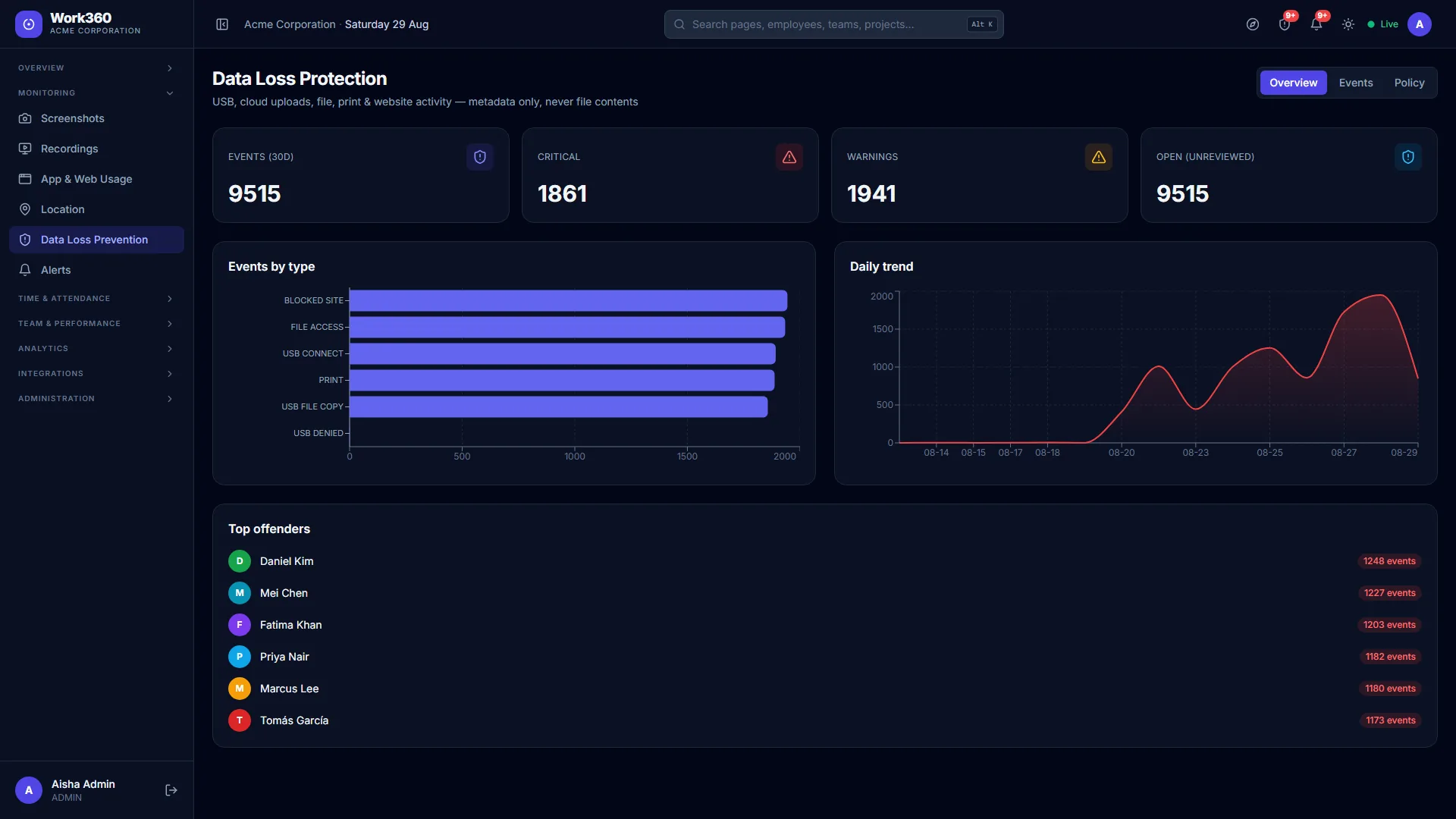
Location & geofencing
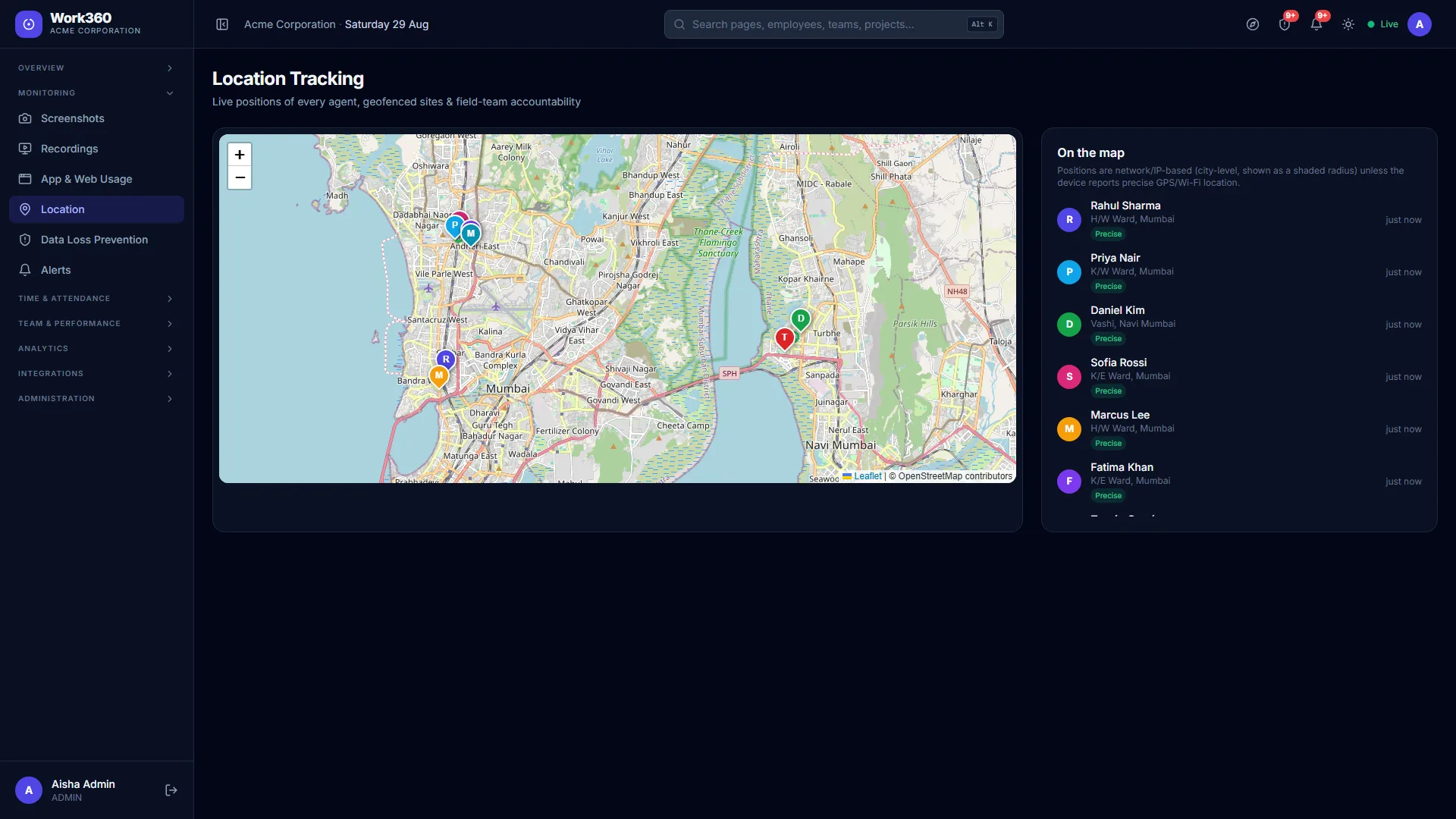
With consent captured at install, the agent reports GPS/Wi-Fi (or IP-based) location, plotted on a live map per employee and org-wide, with route history and geofences.
Accuracy: when location consent is given, the installer enables the device's Windows Location Service so positions come from precise GPS/Wi-Fi (~10-100 m). For the most accurate positioning, including on devices where Group Policy locks the OS location service off. You can optionally add a Google Geolocation API key (a paid Google service): the agent then triangulates nearby Wi-Fi access points (~20-50 m, resolved server-side so the key never leaves the platform). As an admin you can add your own key under Settings → Location accuracy (it applies to your workspace only and includes step-by-step help for getting a key); a platform operator can also set a platform-wide fallback key. This is not required, without any key, location still works via GPS/Wi-Fi and IP. Failing both, it falls back to network/IP location (city-level, ~3-5 km). The map labels each position Precise or Approximate · city-level with an accuracy radius. Uninstalling restores the device's original location setting.
Alerts & notifications
Alerts surface monitoring events: DLP breaches, tamper attempts, low activity, after-hours work, access requests, in real time, in-app and by email. Notifications are personal, in-app messages (approvals, 1:1 notes, meeting reminders, new releases). Alert-rule management is admin-only; managers see alerts for their own team. Enable web-push in My Profile to get them even when Work360 is closed.
Calendar & meetings
Connect Google Calendar or Microsoft 365 / Outlook (per-user, read-only) so meetings show up alongside work.
- Setup (one-time, by the platform operator): add the Google / Microsoft OAuth client credentials in Platform Settings → Calendar integrations. Then each employee clicks Connect on the Integrations page to link their own calendar.
- Calendar page. A month view with a per-day agenda; managers can view a team member's calendar.
- Reminders. A notification 10 minutes before each meeting (in-app + push).
- Calendars auto-sync every 5 minutes, and you can Sync now any time.
Meetings, focus & attendance
The Meetings & Focus dashboard turns calendar + activity data into insight: meeting hours & cost, meeting load %, deep-work hours, a focus score (depth + low switching) and context-switches per hour, per person and across the team.
Attendance: for each online meeting Work360 estimates whether the person joined and for how long (from activity during the meeting window), giving attended time, % and a join / no-show verdict. Managers get an alert when someone who accepted a meeting doesn't join. Each meeting is labelled verified (from Teams, where configured) or estimated.
Developer tools & engineering
Connect GitHub, GitLab or Jira (per-employee, read-only, via a token or OAuth) so shipped work counts toward productivity, not just screen time.
- Imports commits, PRs/MRs, reviews and tickets; real-time webhooks keep it fresh, and everything auto-syncs every 5 minutes (plus Sync now).
- The Engineering dashboard shows output over time, cycle time, active-hours-vs-output, and by-developer and by-project breakdowns: filter by Today / Yesterday / any date range.
- Drill in: click a project or a developer to see the underlying commits, PRs and reviews, each linking straight to GitHub / GitLab / Jira.
repo + read:user scope (SSO-authorised if your org uses SAML).Performance & growth
- KPIs & Goals/OKRs: set a target and Work360 tracks it automatically from the data it already collects.
- Performance reviews: run review cycles pre-filled with each person's real numbers; self-assessment → manager review → shared → acknowledged.
- 1:1 check-ins. A shared space for notes and action items between a manager and each report.
- Kudos: lightweight peer recognition.
- Work Log: employees log what they worked on.
Wellbeing & capacity
- Pulse / eNPS surveys: anonymous, one-tap morale check-ins; you see the aggregate trend, never who said what.
- Workload & wellbeing signals: long-hours and burnout-risk flags to rebalance load early.
- Capacity & utilisation: leave-aware utilisation, billable ratios and project allocation at a glance.
- Leave / PTO: request time off, track balances; managers approve, and approved leave shows on the timesheet.
Insights, reports & AI
- Proactive team insights: weekly, week-over-week anomaly detection (productivity drop, idle spike, overtime, at-risk KPIs) plus who to recognise, delivered as a page and a weekly briefing.
- Scheduled reports: have payroll, productivity or leave reports emailed to you automatically (needs SMTP configured).
- AI summaries: plain-English recaps of a person's or team's work, grounded only in the recorded numbers (needs an Anthropic API key).
Integrations & API
- Microsoft Teams, per-org channel notifications for leave and approvals.
- Public API & webhooks, per-tenant, scoped, revocable API keys for a read
/api/v1API, plus outbound webhooks that POST signed events to your URL. (Admin-only, under API & Webhooks.) - SSO: sign in with Google, Microsoft or your own SAML identity provider (Okta, Azure AD, OneLogin).
Connect "Sign in with Microsoft"
"Sign in with Microsoft" uses a Microsoft Entra ID (Azure AD) app registration. Set it up once:
- In the Microsoft Entra admin center → App registrations → New registration. Name it Work360 (this is the name employees see on the Microsoft consent screen), and set the account type to multitenant.
- Under Authentication → Platform configurations → Web, add these redirect URIs (both on the API host, and they must match exactly):
https://api.work360.cloud/api/auth/sso/callback/microsoft, for “Sign in with Microsoft”.https://api.work360.cloud/api/integrations/calendar/callback/microsoft, for calendar connect and the org-wide admin-consent flow.
- Under Certificates & secrets, create a client secret. Copy the Application (client) ID and the secret value.
- Paste them into Platform Settings → Sign-in providers (Microsoft client ID + secret) and save.
- Recommended: under Branding & properties, upload the Work360 logo and complete Publisher verification. This removes the "unverified" label on the consent screen.
Seeing "eWatch" or "Need admin approval" on the Microsoft screen? The app name shown there is the display name of your Azure app registration, not a setting inside Work360: rename that app registration to Work360 in the Entra admin center (Branding & properties → Name). "Need admin approval" means a Global Administrator of your Microsoft tenant must grant admin consent once (Enterprise applications → the app → Permissions → Grant admin consent, or use the one-click Integrations → Grant admin consent button), after which employees can sign in without prompts.
Publisher verification (remove the "unverified" label)
Publisher verification replaces the "unverified" text on the Microsoft consent screen with a blue Verified badge and your company name. It's a one-time setup done in Microsoft's portals (nothing to configure in Work360).
Prerequisites
- A Microsoft AI Cloud Partner Program account (free to join at partner.microsoft.com) whose business verification is complete (Partner Center → Account settings → Legal info shows your organization as verified). This vetting can take a few business days: start it first.
- Your Partner ID (MPN ID): Partner Center → Account settings → Identifiers → Microsoft AI Cloud Partner Program tab → the row with Type PartnerGlobal. (Use the Global Partner ID, not the PartnerLocation/CSP one.)
- The app's Publisher domain (Entra → your app → Branding & properties) set to a domain you own and have verified.
- You're signed in with Application Administrator or Global Administrator on the app's tenant, and that tenant is associated with the partner account.
Steps
- Microsoft Entra admin center → Identity → Applications → App registrations → open your app.
- Open Branding & properties. Next to Publisher verification, click Add MPN ID to verify.
- Enter your PartnerGlobal Partner ID (MPN ID) and click Verify and save.
- On success the app shows a Verified state; the blue badge appears on the consent screen within a few hours. While here, set Name = Work360 and upload the Work360 logo so the screen is fully branded.
If verification is rejected, it's almost always because the partner account's business verification isn't complete yet, the signed-in user lacks the Entra admin role, or the Publisher domain isn't verified. Publisher verification is about trust/branding only. It is separate from admin consent, which is what lets employees actually connect.
Plans & billing
Manage your subscription with secure Stripe checkout: upgrade, manage your card and see invoices from the Billing page (admin-only). Plans are seat-aware: invites and enrollments are enforced against your seat count.
Mobile app & push
Work360 is an installable PWA: add it to your phone's home screen and it runs like a native app (iOS & Android, no app store). Turn on push notifications in My Profile to get alerts, approvals, 1:1 notes and meeting reminders even when the app is closed.
Employee portal
Employees get a focused, self-service portal, no admin pages:
- My Overview & My Insights. This week's worked/active/idle hours, trends and pending-approval status.
- My Timesheet & My Shifts: attendance calendar and scheduled shifts; request approval for idle time.
- Goals, Reviews, 1:1s, Kudos, Work Log, Leave. Their own growth and requests.
- Calendar & Integrations: connect their own calendar and dev tools.
- My Profile: details, profile photo, password and two-factor authentication.
- What we monitor: full transparency on exactly what Work360 collects for them.
Compliance & data rights
- Access log, every time a manager views someone's screenshots, recording or location is logged, and the employee can see it (two-way transparency).
- Monitoring consent: employees acknowledge your monitoring policy; you get a compliance record of who accepted.
- Data retention: auto-expire old data on your schedule, per category.
- Subject requests (DPDP / GDPR): export or erase an individual's monitoring data on request.
Release notes
Every user can open What's new from the sidebar to see the full release history and highlights. On each new version, a popup and a bell notification let you know what changed, with Skip (shows again next login) or Don't show this release.
Security & privacy
- Row-level multi-tenant isolation enforced on every request.
- Secrets (SMTP, storage keys, OAuth secrets, API tokens) encrypted at rest with AES-256-GCM.
- Two-factor authentication (TOTP), SSO/SAML, and automatic session expiry after inactivity.
- The agent is visible, not stealth, and stores metadata: consent is captured for monitoring and location.
Frequently asked questions
What does the % on a screenshot mean?
A new agent installed but doesn't show any data: why?
Why does the calendar say 'Not enabled by your administrator yet'?
Microsoft says 'AADSTS50011: redirect URI does not match'?
https://api.work360.cloud/api/auth/sso/callback/microsoft (sign-in) and https://api.work360.cloud/api/integrations/calendar/callback/microsoft (calendar + admin consent). Save, then retry.Employees connecting Microsoft see 'Need admin approval': how do we fix it org-wide?
How is meeting attendance worked out?
My GitHub stats show 0 or a flat 100: why?
repo + read:user scope (SSO-authorised if needed), then Sync now.